 Nuclideon
 General Transit Feed Specification
GTFS is a data specification that allows public transit agencies to publish their transit data in a format that can be consumed by udStream. GTFS is intended for use by advanced users as it contains features that can cause performance loss if not configured correctly.
Setup
A GTFS feed can be added to the scene by clicking the  on the tool bar.
The following modal will be opened; the GTFS link should be to the .zip file of the GTFS feed.
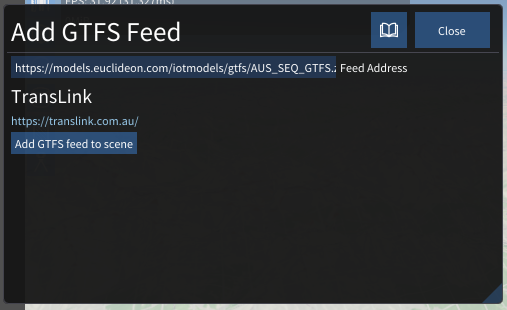
After the feed is verified; the feed name and URL will appear and the "Add GTFS feed to scene" button will be enabled.
Customisation
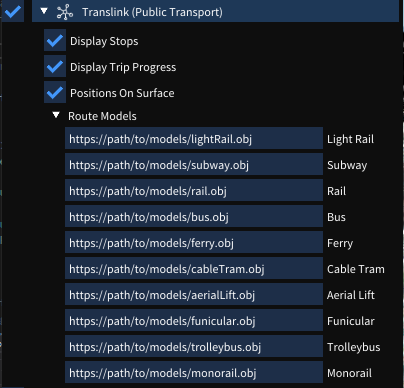
Once a GTFS node has been added to the scene, customisation options will appear in the Scene Explorer window:
Stops
Enabling the 'Display Stops' option will display the stop information as labels in the scene viewer window. These stops can be individually selected (in the scene viewer window) to bring up additional information about that stop.
Trips
Enabling the 'Display Trip Progress' option will display trip information. Each trip has a type, and the system will render the appropriate model URL provided by the user in the 'Route Models' list. For example, trips that have type 'Subway' type will draw the model provided in the 'Subway' input field.
Selecting a route model in the scene viewer will bring up additional information about that route, including its route path.
Other Settings
Enabling the 'Positions On Surface' option will query the system for height information for each trip, placing it on the surface of the maps (if DEM is enabled).
Note! This is an expensive operation, and should be used with caution.
Ribbon Settings
When a GTFS node is selected, the ribbon tab mirrors the Scene Explorer customisation options:
- Display Stops: Show transit stop labels in the scene.
- Display Trip Progress: Show live or scheduled trip positions using the configured route models.
- Route Models: A list mapping each GTFS route type (Bus, Tram, Subway, Rail, etc.) to a 3D model URL.
- Positions On Surface: Snap trip positions to the terrain surface using DEM data. Use with caution as this is an expensive operation.
Scene Node Metadata
| Key | Type | Description |
|---|---|---|
showStops | bool | Display transit stop labels in the scene. |
showTripProgress | bool | Display live or scheduled trip positions. |
demPositions | bool | Snap positions to the terrain surface (requires DEM). |
routeModelURL_[type] | string | 3D model URL for route type type (e.g. routeModelURL_0 for tram, routeModelURL_3 for bus). |