 Nuclideon
 Paths, Flythroughs and Video Export
This feature allows you to capture, edit and export a 'flythrough' of the camera. To use:
- Select
 Add Flythrough from the tool bar. You should see a window pop up in the scene.
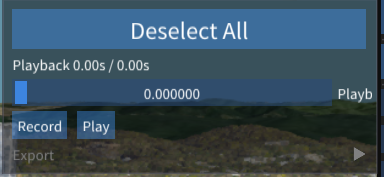
- Click Record to start recording, and move around in the scene.
- Once you are done, Select Stop.
- You will now have an option to Export the flythrough with a range of options such as:
- Resolution: 720p, 1080p or 4K
- FPS: Frames Per Second
- Export Format: Export as either a sequence of images or an MP4 movie file
- Export Path: The path you wish all export files to be placed
Opening the flythrough or Camera Path in the scene explorer will allow you to edit, remove and add frames to the flythrough.
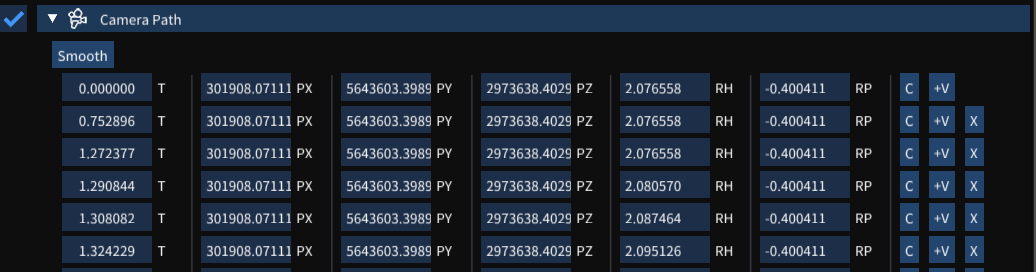
Each frame consists of the following elements:
- T: The timestamp of each frame
- PX, PY, PZ: The coordinates of the camera at this frame
- RH, RP: The heading and pitch of the camera at this frame
- C: Copy the current camera position to this frame's position
- +V: Add a new frame after this one
- X: Delete frame
Additionally, select Smooth to smooth out the camera movement over all frames.
Ribbon Settings
Playback Controls
The ribbon tab for a selected flythrough provides:
- Play / Pause: Start or pause the flythrough animation.
- Stop: Stop the animation and return to the beginning.
- Export: Open the export dialog with the following options:
- Resolution: 720p, 1080p, or 4K.
- FPS: Frames per second for the exported output.
- Export Format: Image sequence or MP4 movie file.
- Export Path: Destination folder for exported files.
Keyframes Table
The ribbon also shows the full keyframe table (same as the Scene Explorer view described above).
Interpolation
- Smooth (Catmull-Rom): Enable Catmull-Rom spline interpolation for smooth camera movement between keyframes.
Scene Node Metadata
| Key | Type | Description |
|---|---|---|
iscatmullromon | bool | Enable Catmull-Rom spline interpolation between keyframes. |
time[N] | double | Timestamp of keyframe N in seconds (where N is a zero-based index). |
cameraHeadingPitch[N].x | double | Camera heading at keyframe N in degrees. |
cameraHeadingPitch[N].y | double | Camera pitch at keyframe N in degrees. |